How can we help?
Questions, troubleshooting, and feature requests are welcome. Email saladtracker@gmail.com or join our Discord chat for a good support avenue with other users.
Find the signal before you start guessing.
The dashboard separates earnings, fleet health, GPU demand, and monitoring status so each troubleshooting step has useful context.
Getting started
- Install Salad Tracker from the Chrome Web Store.
- Sign in to Salad in the same Chrome profile.
- Open the extension popup and choose Open dashboard.
- Keep one signed-in browser open if you have enabled Pro cloud sync or monitoring.
Moving from the manual ZIP
- Open
chrome://extensionsand check that the existing Salad Tracker ID isnfgmcogmoakngbbmffagmomgphgkckga. - Leave the existing card and code folder in place while you install the Store version from the same Chrome profile.
- Close and reopen the dashboard, then verify your history, aliases, settings, and version before removing the unpacked card.
- If the ID differs, do not remove the old card yet. Pro cloud sync can restore synced data; Free users may need to recreate aliases and settings. See the full transition guide.
If machines or earnings are missing
- Confirm that Salad is open and signed in.
- Refresh the Salad page, then reopen the Salad Tracker dashboard.
- Check that the selected time range includes the period you expect.
- For cloud history, open Account & Pro and choose Refresh account.
Hosted Pro dashboard
Active Pro customers can sign in at saladtracker.com/dashboard from a phone or any browser. First open the extension’s Account & Pro page, accept the expanded Cloud sync & monitoring consent, and let one signed-in Salad browser complete a collection. The hosted page shows the last synchronized snapshot; it cannot force a Salad refresh. On iPhone, open the page in Safari, tap Share → Add to Home Screen; on Android Chrome, open the menu and choose Install app or Add to Home screen.
Pro, cloud sync, and alerts
Pro costs $15/month. Cloud history, the hosted dashboard, cross-PC names, monitoring, and email alerts are optional and require explicit consent. Billing changes and cancellation are handled through Manage billing in Account & Pro.
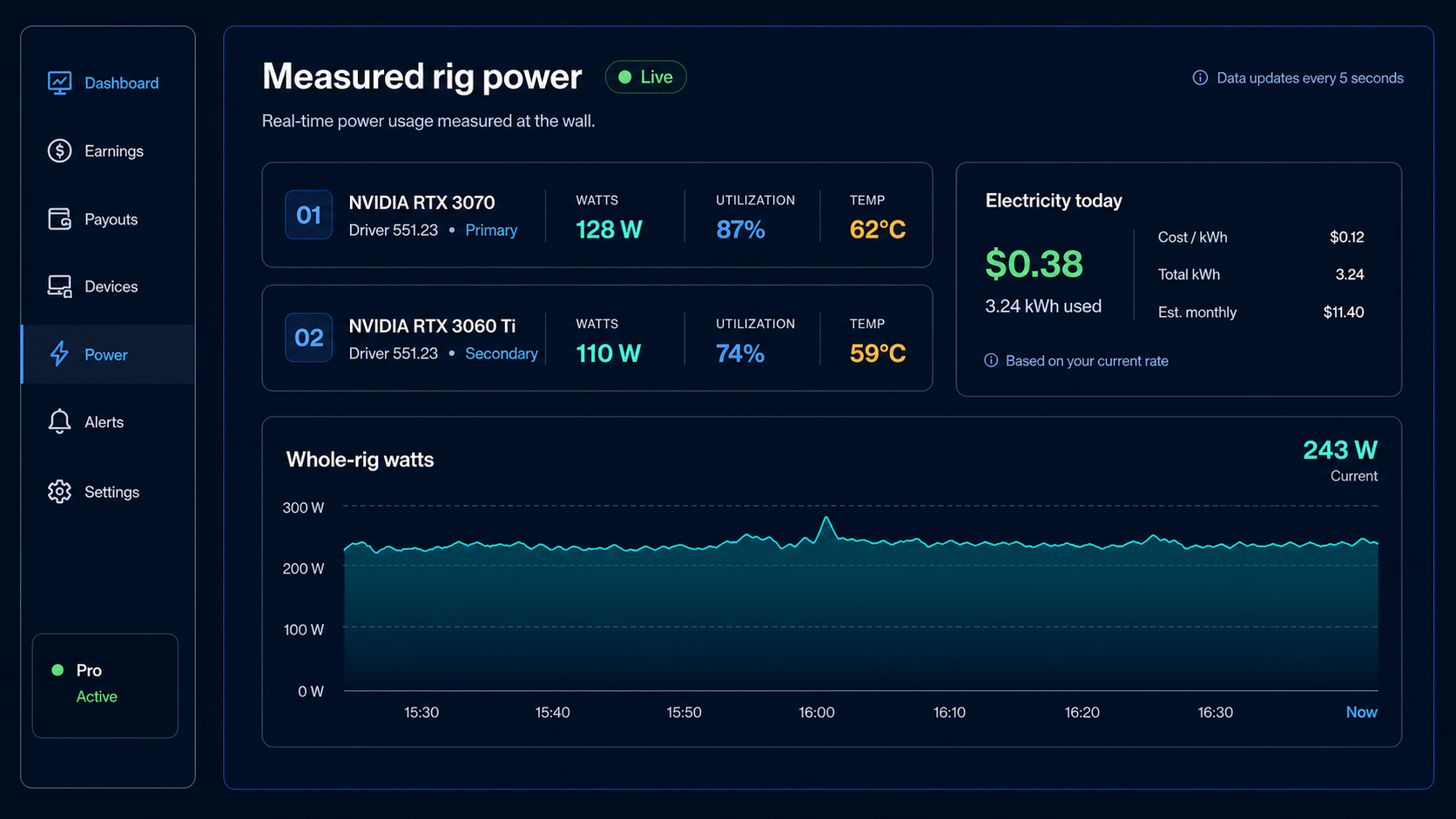
Windows rig monitor
- In the extension, open Account & Pro, select Add a rig monitor, and create a pairing code.
- Download the Windows/NVIDIA monitor ZIP from this site and extract it.
- Run SaladTrackerMonitorSetup.exe on the Windows x64 NVIDIA rig and enter the code within 10 minutes.
- Allow it to start with Windows if you want continuous readings. Use SaladTrackerMonitorSetup.exe --remove-startup to remove that startup entry.
Updating an existing monitor: End SaladTrackerMonitor.exe in Task Manager, extract the new ZIP over the previous monitor folder, and run SaladTrackerMonitorSetup.exe once. The existing pairing is retained. Keep the same folder so an existing Windows startup entry continues to point to the updated monitor.
The current monitor is an unsigned early-test build. If Windows shows “blocked an app that may be unsafe,” confirm that you downloaded the ZIP from this official site, then open Windows Security → App & browser control → Smart App Control settings and turn Smart App Control off. There is no per-app allow button for this block. Keep your other Windows protections on, and turn Smart App Control back on after you stop using this unsigned test build or install a signed update. We are working toward a signed build so this step will not be needed.
If the app reports that nvidia-smi.exe is missing, update or reinstall the NVIDIA driver.
Contact us
For the fastest help, include a short description of what happened, the Chrome version, and the Salad Tracker Account ID shown under Account ID for support. You can email saladtracker@gmail.com or join the Salad Tracker Discord chat. Never email your password, Salad cookies, Stripe details, or API keys.
Email Salad Tracker support Join Discord chat
More information
Read our Privacy Policy and Terms of Service.