Salad Tracker downloads
Start tracking your farm.
Use the Chrome extension to see Salad earnings and machines. Add the optional Windows monitor when you want measured whole-rig power, electricity cost, and net earnings.
The extension is now available from the Chrome Web Store. Install it once and receive future approved releases through Chrome’s update channel.
See it before you install
Your fleet, earnings, and demand in one view.
The extension is a focused operating dashboard for people running Salad GPU rigs—not another page of setup steps.
See what it does →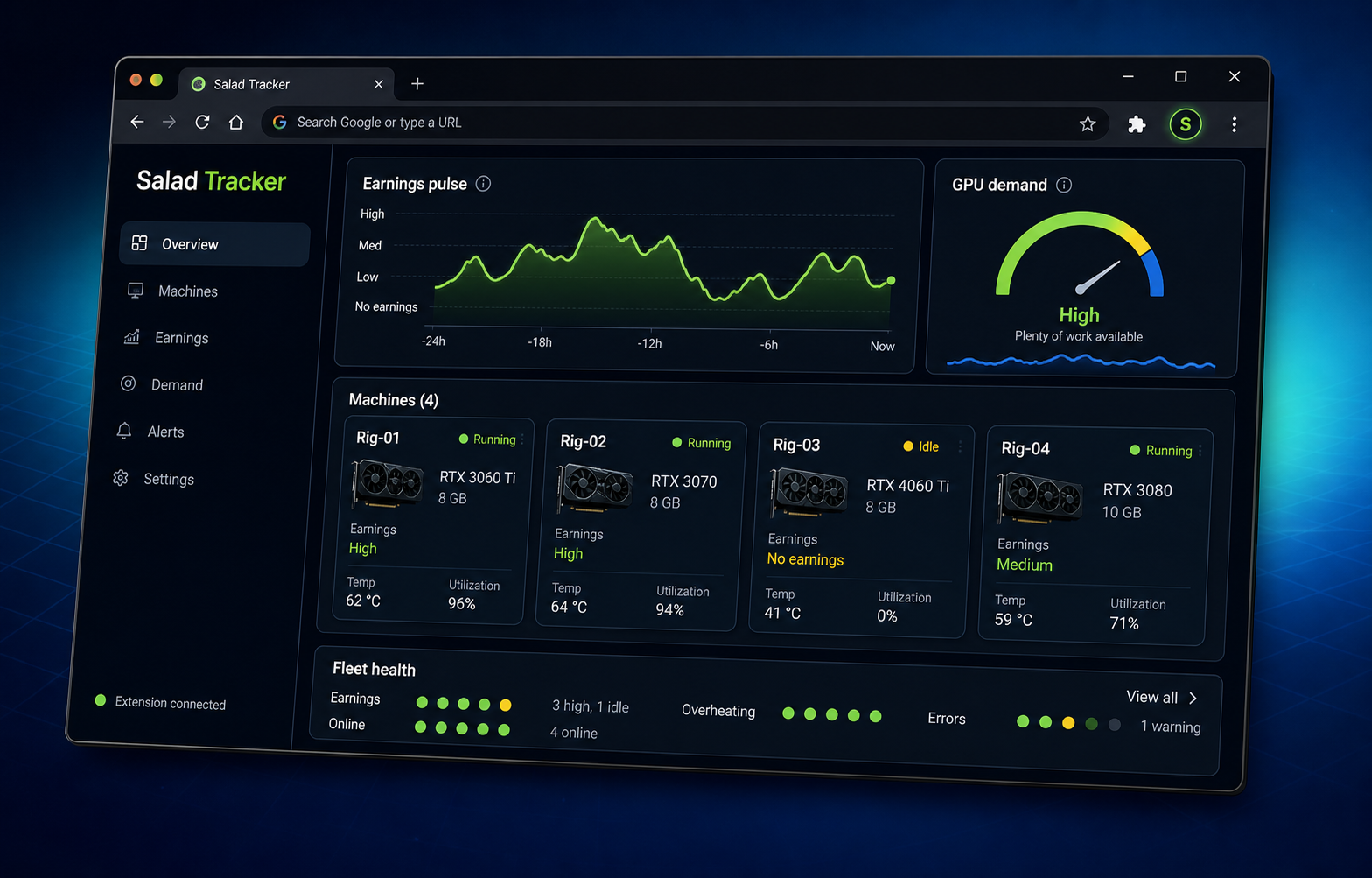
Start here
Chrome extension
The extension is the main Salad Tracker dashboard. It reads the earnings and machine data available in your signed-in Salad tab and keeps Free history locally in Chrome.
- See every rig, GPU, earnings chart, health signal, and GPU demand view.
- Use Free without an account, or sign in for Pro history, cloud sync, alerts, and monitoring.
- Works in Chrome on the computer where you use Salad.
Add to Chrome
Extension v0.4.11 · Chrome 120 or newer · Windows, macOS, and Linux
Optional Pro add-on
Windows rig monitor
The monitor runs on each Windows x64 rig with an NVIDIA driver. It collects NVIDIA-reported GPU telemetry and uploads paired readings so the extension can estimate the whole rig’s power and electricity cost.
- Use it for measured watts, GPU temperatures/utilization, electricity cost, and net earnings.
- It does not read your Salad password, browser cookies, wallet, or general files.
- Pair it from Account & Pro with the one-time code shown by Add a rig monitor.
Download Windows monitor ZIP
Monitor v0.1.1 · Windows x64 + NVIDIA driver · unsigned early-test build · Pro required for measured telemetry
Built for GPU operators
Run your fleet with better signals.
Salad Tracker turns daily GPU activity into a clear operating view of earnings, demand, machine health, and power costs—so you can spend less time checking tabs and more time making decisions.
Start simple, add visibility as you growUse Free for local rolling history. Upgrade to Pro when you need longer reporting, cloud sync across PCs, alerts, or measured whole-rig power and net earnings.
Measured power setup
Add a monitor to a Windows rig
- Install the extension and sign in to a Pro account.
- In the dashboard, open Account & Pro, choose Add a rig monitor, and create a pairing code.
- On the Windows/NVIDIA rig, extract the monitor ZIP and run SaladTrackerMonitorSetup.exe.
- Enter the code within 10 minutes, choose whether it starts with Windows, then wait for the first reading.
If Windows Smart App Control blocks the monitorThe current monitor is an unsigned early-test build. Smart App Control may show “blocked an app that may be unsafe,” with no Run anyway option. Confirm that you downloaded the ZIP from this official site, then open Windows Security → App & browser control → Smart App Control settings and turn Smart App Control off. Windows does not provide a per-app allow button for this block. Keep your other Windows protections on, and turn Smart App Control back on after you stop using this unsigned test build or install a signed update. We are working toward a signed build so this step will not be needed.